Creating a ZFS storage pool in Proxmox
Proxmox supports several storage backends — LVM, LVM-Thin, directories, NFS, ZFS. For most homelab setups running VMs and containers, ZFS is the one worth understanding. Here’s how to set it up, and why you’d choose it over the alternatives.
Why ZFS in Proxmox
ZFS gives you copy-on-write semantics, checksumming, and snapshots at the filesystem level — which matters for VMs specifically. When you snapshot a VM disk in Proxmox with a ZFS backend, it’s instant and space-efficient. With a plain directory backend, Proxmox has to make a full copy.
The tradeoff is RAM — but less than the folklore claims. ZFS uses otherwise-idle memory for the ARC (Adaptive Replacement Cache) and hands it back under pressure; the old “1GB of RAM per TB of storage” rule was a cautious baseline, not a hard law — and the feature that genuinely eats RAM is deduplication (closer to 5GB per TB of unique data), which most homelabs never enable. A homelab host with 8GB or more runs ZFS comfortably. Give it more only if you want a bigger read cache — not because a per-terabyte formula says you must. (More on why ARC isn’t the memory hog it looks like.)
Proxmox has shipped ZFS for years — both the ZFS storage plugin and ZFS-on-root in the installer arrived back in the 3.4 release. You don’t need to install anything extra.
Before you start
- Disks you want to use should be unconfigured — no existing partitions, no previous ZFS pools. Proxmox will warn you, but double-check.
- Use
/dev/disk/by-id/paths, not/dev/sda. (Covered here.) - Decide on your RAID level before starting. Changing it later means destroying and rebuilding the pool.
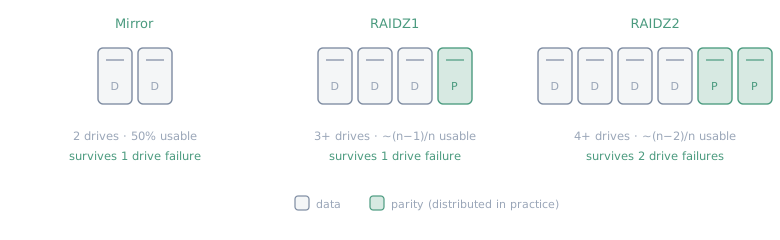
Quick RAID level reference:
| Level | Drives needed | Redundancy | Notes |
|---|---|---|---|
| Single | 1 | None | Dev/scratch only |
| Mirror | 2 | 1 drive failure | Best performance; 50% usable |
| RAIDZ1 | 3+ | 1 drive failure | Common for 3-4 drives |
| RAIDZ2 | 4+ | 2 drive failures | Better for larger arrays |
| RAIDZ3 | 5+ | 3 drive failures | Rarely needed in homelabs |
Mirror is usually the right choice for 2 drives. RAIDZ1 for 3-4. RAIDZ2 if you have 5+ and care about resilience.
Creating the pool via the Proxmox UI
Proxmox VE makes this straightforward through the web interface:
- Open the Proxmox web UI and go to Datacenter → your node
- Navigate to Disks → ZFS
- Click Create: ZFS
- Name your pool (something simple like
tankordata) - Select your RAID level
- Select the disks to include — these show up by their
/dev/disk/by-id/identifiers - Configure compression (enable
lz4— it’s fast and almost always reduces actual storage used) - Click Create
Proxmox creates the pool and automatically adds it as a storage resource. It’ll appear under Datacenter → Storage and be available when creating VMs and containers. The pool status view shows the vdev layout and — importantly — each member disk by its /dev/disk/by-id/ path:
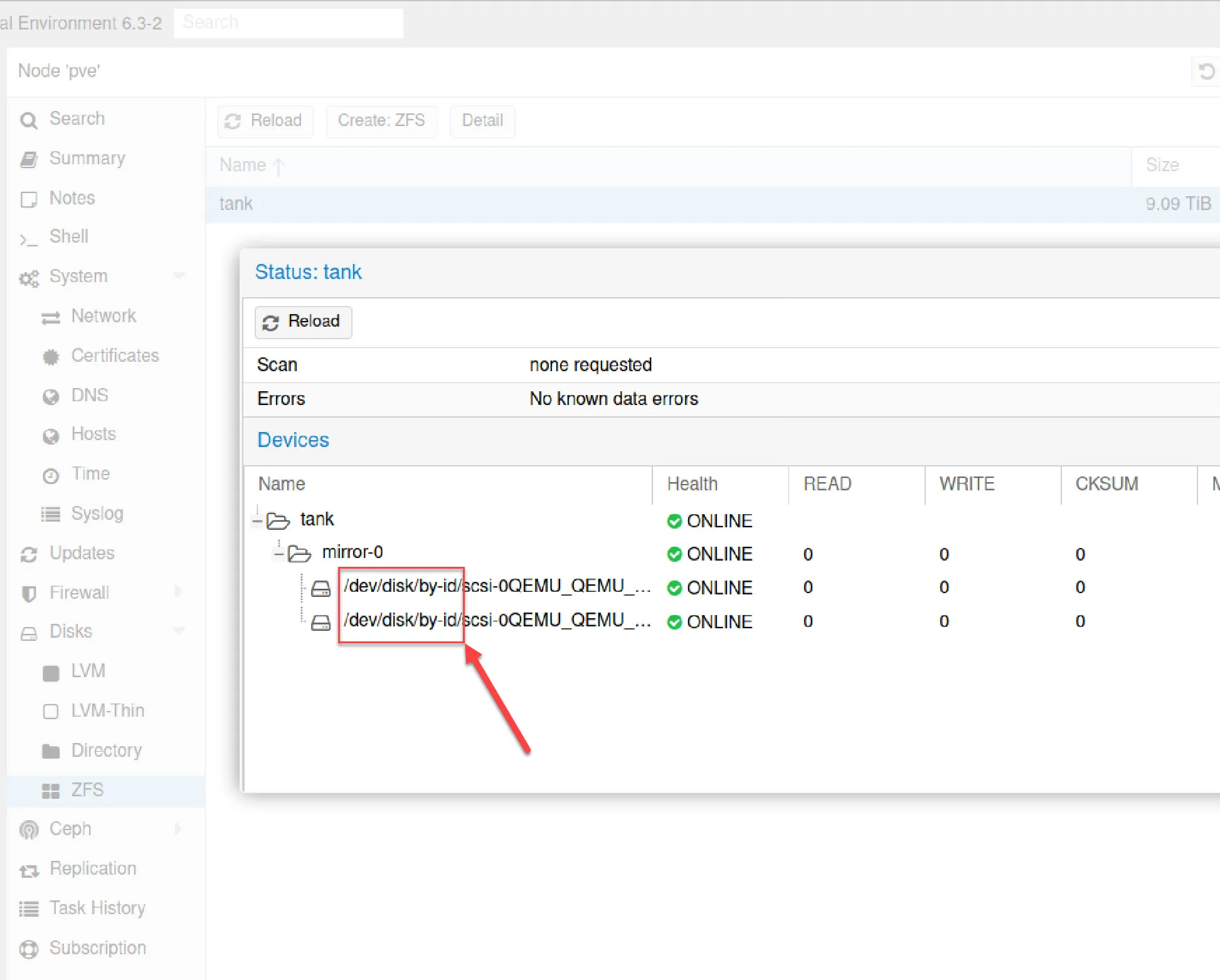
(Screenshot from an older Proxmox release — newer versions restyle this dialog, but the fields and the workflow are the same.)
From the command line
If you prefer doing this via SSH:
# Create a mirror pool with two driveszpool create -f \  -o ashift=12 \  tank \  mirror \  /dev/disk/by-id/ata-WDC_WD40EFRX-68N32N0_WD-WCC7K1234567 \  /dev/disk/by-id/ata-WDC_WD40EFRX-68N32N0_WD-WCC7K7654321
# Enable compressionzfs set compression=lz4 tank
ashift=12 sets the pool’s sector size alignment to 4K, which is correct for almost all modern drives. Setting this wrong at creation time is painful to fix later.
After creating via CLI, add it to Proxmox storage:
pvesm add zfspool tank-storage --pool tank --content rootdir,imagesThen it appears in the Proxmox UI like any other storage backend.
Useful commands to know
# Pool status and healthzpool status
# List pools and usagezpool list
# Dataset usage breakdownzfs list
# Trigger a scrub (run monthly)zpool scrub tank
# Check scrub resultszpool status tank
Run scrubs regularly. ZFS will detect and correct silent data corruption on redundant pools during a scrub. Monthly is a reasonable cadence for spinning disks; quarterly for SSDs.
What content types to use
When adding ZFS storage to Proxmox, you choose what it stores:
- Disk image / VM images — VM disks (
.qcow2or raw) - Container — LXC container rootfs
- Snippets / Backups — backup files, cloud-init configs
For a general-purpose pool, enable VM images and containers. Backups can go here too, though a separate pool or offsite backup destination is better practice.
Next: LVM Thin Pools in Proxmox — a different storage approach worth knowing, especially if you need over-provisioning.
Next in “Proxmox storage, in the order you meet it” Identifying ZFS disks with /dev/disk/by-id/ →